


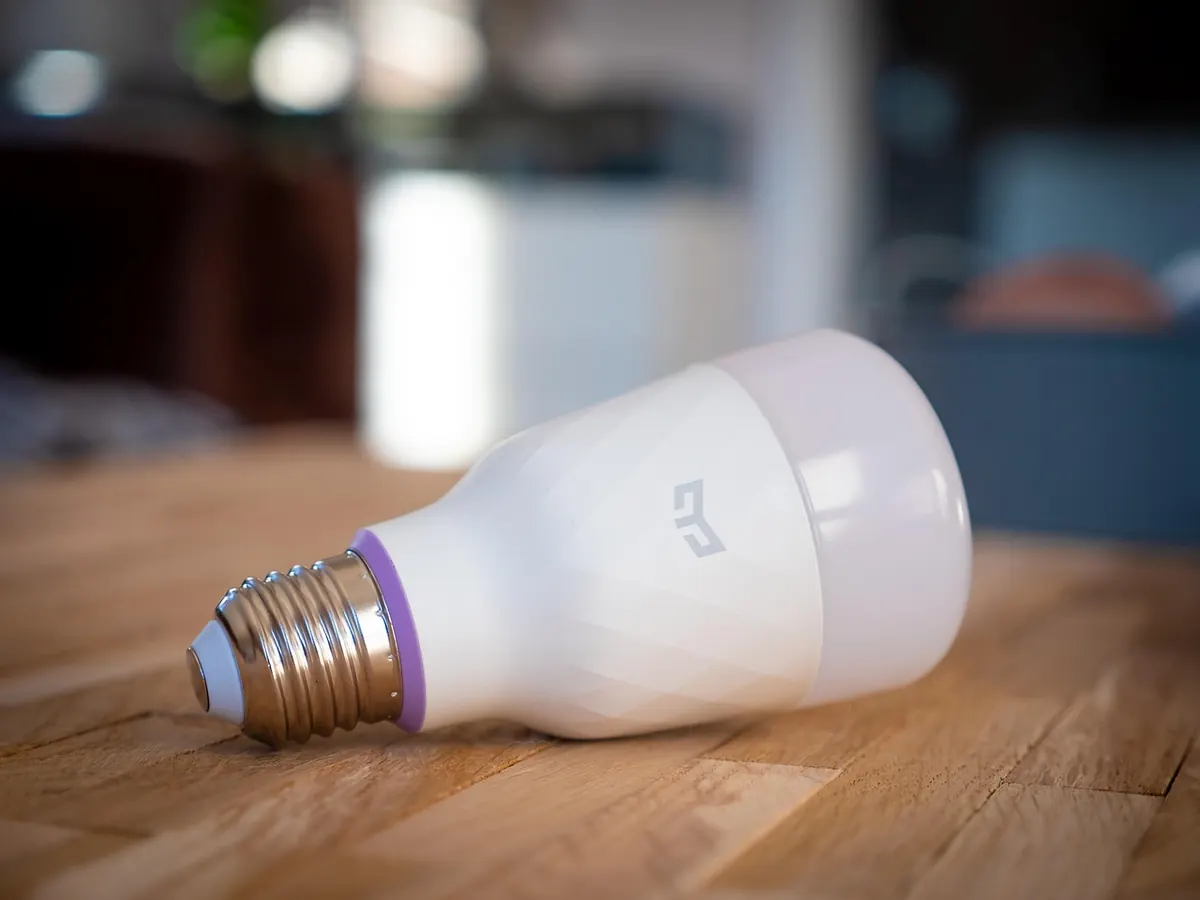


A smart plug costs less than lunch and takes two minutes to set up. That speed is exactly the problem. The defaults on these devices are chosen to get them online quickly, not to keep the data they collect away from strangers. You do not need to be a network engineer to fix that. One evening with the apps already on your phone gets you most of the way there.
The Account Is the Real Front Door
Every camera, speaker, and plug you own is tied to an account somewhere, and that account is usually the weakest point in the chain. If someone gets into it, they do not need to hack your hardware at all — they can simply log in and watch, listen, or switch things on.
So start there. Give each smart home app its own password, and make it one you have never used anywhere else. A password manager makes this painless; you will only type it once per device. Then turn on two-factor authentication wherever the app offers it, ideally with an authenticator app rather than SMS, which can be intercepted through a phone number porting scam.
One more thing people miss: if you share devices with a partner or family member, add them as separate users inside the app rather than handing over your login. That way, when someone moves out or loses a phone, you remove one account instead of changing your password everywhere.
Updates Are the Least Glamorous Habit That Matters
Firmware updates patch the flaws that let strangers reach a device they should not be able to touch. Manufacturers rarely explain what changed, so it is tempting to ignore the notification. Do not.
Open each smart home app and look for an auto-update toggle, usually buried under device settings or a firmware menu. Switch it on. Then, once a month or so, open the app and check the version number manually — auto-update fails more often than you would think, especially if the device was offline during the update window.
Also check the last update date. A camera or hub that has not received firmware in several years is running code that nobody is patching anymore. At that point, the honest move is to replace it or retire it, not to hope for the best.
Put Your Gadgets on Their Own Network
This is the single biggest structural change you can make. Most home routers can broadcast a guest network in addition to your main one. Put every smart device on that guest network and keep your laptops, phones, and anything holding work files or banking apps on the main network.
The reason is containment. If a cheap plug or camera is compromised, the attacker lands on the guest network and finds other smart devices — not your laptop, not your tax documents, not your email.
- Log into your router's admin page and find the guest network section.
- Give the guest network a different name and a long, unique password.
- Enable client isolation or AP isolation if the option appears. This stops devices on that network from talking to each other.
- Move each smart device over by re-running its app setup and entering the new Wi-Fi details.
- Confirm the old network no longer lists those devices in your router's connected-client view.
If your router does not offer this
Some ISP-supplied routers hide or omit guest networks. Check for a setting labeled guest access, AP isolation, or a secondary SSID before giving up. If none exist, a basic second router running in access point mode behind your main one does the same job, and older hardware you already own often works fine for it.
Cameras Need More Than a Password
Cameras are the devices most likely to embarrass you, because they sit in bedrooms, hallways, and living rooms. After changing the default password, work through the rest of the settings list:
- Remote viewing: if you only ever check footage while at home, turn off access from outside your network.
- Motion zones: limit alerts to your porch or driveway so a passing car does not fill your feed with clips of your own street.
- Microphone: disable audio recording if you do not use two-way talk. Many people never realize their camera has been listening.
- Shared clips: look for any public link or "share" feature and make sure nothing is set to visible.
- User list: remove old accounts, especially anyone who no longer lives with you.
- Placement: aim cameras at your own property. Rules about filming neighbors and public space vary by location, so check local guidance if you are unsure.
Speakers and Voice Assistants: Control the Recordings
Voice assistants keep a history of what they heard, and that history is stored in your account. Open the privacy section of the assistant's app and review it. Delete old entries, then find the auto-delete setting and set recordings to be removed on a short schedule rather than kept indefinitely.
Use the physical microphone mute button when you are having a private conversation. It is a hardware cutoff, which means it works even if software misbehaves. Also review the third-party skills or actions connected to your account — each one is a separate company with access to what you say — and remove anything you added for a one-time experiment. If voice purchasing is enabled, turn it off or add a confirmation code.
Plugs, Bulbs, and the Quiet Devices
A smart plug looks harmless, but it tells a story. An attacker who gets into your account can see schedules, infer when the house is empty, and switch things off while you are away. Change the default password in the plug's own app, rename devices so you can spot an unfamiliar one in the list, and keep away-mode schedules slightly irregular rather than identical every day.
While you are at it, check the settings on your smart TV. Many ship with content recognition enabled, which builds a viewing profile and shares it with advertisers. It sits in the privacy menu under a name like "viewing information" or "live TV tracking," and it is usually a single toggle.
A One-Evening Setup Pass
Do this in order and you will cover the highest-risk gaps first: change the password on your smart home account and turn on two-factor authentication; enable auto-update in every device app; move all smart devices to a guest network with isolation on; open the camera settings and disable audio, remote access, and clip sharing; set your voice assistant history to auto-delete; and remove any connected skill or user you no longer recognize.
Then set a reminder for three months from now. Devices get added over time, guests connect to your Wi-Fi, and updates quietly fail. A short review twice a year keeps the whole setup from drifting back to its factory defaults.
Photo: haus_automation / Pixabay