




Your router is the quietest device on your network and the one everything else trusts. Every laptop, phone, camera and thermostat passes through it, and plenty of those routers are still running the password printed on a sticker from years ago.
Hardening one takes about twenty minutes. The seven steps below cover the parts that genuinely matter: the admin login, firmware, encryption, and a guest network that keeps cheap gadgets away from your real files.
1. Change the Admin Password First
Most people change the Wi-Fi password and never touch the admin one. That's backwards. The Wi-Fi password lets someone use your internet; the admin password lets someone reconfigure your router, redirect your DNS, open ports, or lock you out of your own settings.
Open a browser and try 192.168.0.1 or 192.168.1.1, or use the manufacturer's app. The default username and password are in the manual, on the sticker, and in every attacker's list — "admin/admin" is not a secret. Replace it with a passphrase of several unrelated words, and store it in a password manager.
While you're in there, look at your Wi-Fi name. An SSID like TP-LINK_4F2A or Flat3_Router tells a stranger exactly which model to look up, or which door to knock on. Something neutral works fine.
If your ISP supplied the router, you may find the admin account locked. Call them or use their app; you can usually still set the Wi-Fi password and rename the network yourself.
2. Update the Firmware, Then Automate It
Firmware is the router's operating system. Vendors fix security flaws in it, but only for as long as the model is supported, and routers rarely update themselves unless you ask.
- Log into the admin panel.
- Find the section labelled Administration, System, or Firmware Update.
- Check for an update and install it. Let the router reboot without unplugging it — that's the one moment you can brick it.
- Turn on automatic updates if the option exists.
Do this from a wired connection if you can, or be ready to reconnect to Wi-Fi afterwards. If your router hasn't seen an update in years, or the vendor's support page no longer lists your model, that's a strong reason to replace it. A router with no security fixes coming is a door nobody will ever repair.
3. Set Wi-Fi Encryption to WPA3
In the wireless security settings you'll usually see a list: WEP, WPA/TKIP, WPA2-AES, WPA3. Pick WPA3 if it's available. It's the current standard and it resists offline guessing against captured handshakes, which is how most home Wi-Fi gets cracked.
If an older device refuses to connect, move to WPA2/WPA3 mixed mode rather than dropping down to TKIP. And never leave a network open on purpose — an unencrypted network means anything you send over it is readable to anyone nearby.
Length beats complexity for the Wi-Fi passphrase too. Four or five random words are easier to type on a phone and far harder to guess than P@ssw0rd1.
4. Set Up the Guest Network and Use It
A guest network keeps visitors on the internet without handing them your shared folders, printer or network storage. That's the obvious benefit. The more useful one is for your own devices.
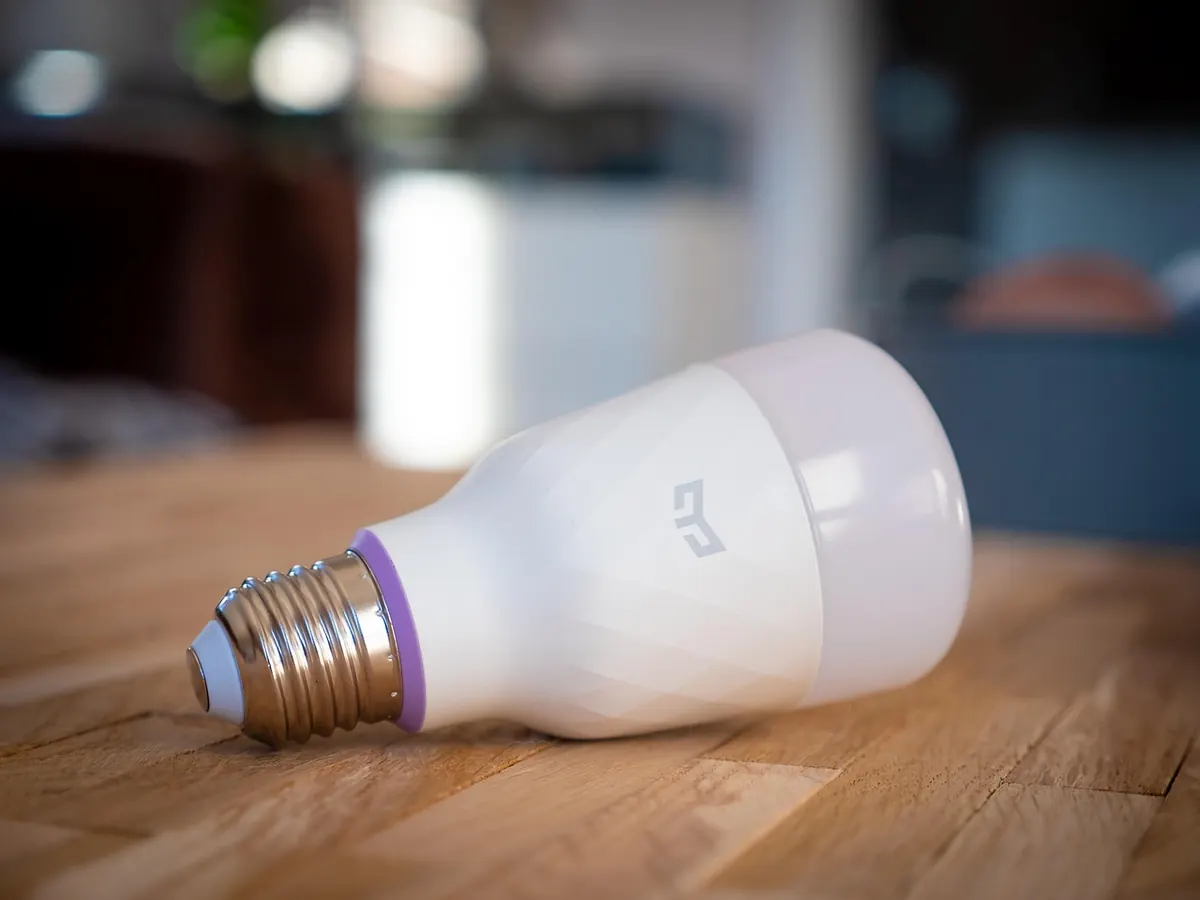
Smart plugs, bulbs, robot vacuums, doorbells and budget cameras run old software and get few updates. Put them on the guest network and a compromised gadget is stuck in its own corner of the network instead of sitting next to your laptop. Check whether your router allows guest clients to see each other; for a pile of smart devices you generally want them isolated. Test streaming and casting tools, though — some of them need to talk to devices on the local network and won't work across the isolation setting.
Give the guest network its own strong password, and change it after a party or a visit from the contractor who asked for the Wi-Fi.
5. Switch Off What You Don't Use
Routers ship with features enabled for convenience, not safety. Take a pass through the settings and turn off the ones you don't rely on:
- WPS — the push-button or PIN pairing feature. The PIN can be guessed, so leave it off and type the password instead.
- Remote administration from the internet — your router's admin page should not be reachable from outside your home.
- UPnP — handy for game consoles, but it lets any device on your network open ports to the internet without asking you. Disable it unless something you use breaks.
- Port forwarding and DMZ rules — clear out anything you don't remember creating. Old rules are the classic way a home network gets exposed.
- Extras — USB file sharing, FTP servers, media servers, Telnet access. If you're not using them, they're just attack surface.
Need to reach your home network while travelling? Use the router's built-in VPN server rather than opening ports by hand.
6. Check the Device List, and Where the Router Sits
Every router has an attached devices or DHCP client list. Open it and read it properly. If something shows up that you can't name — an unfamiliar phone, a laptop you don't own — change the Wi-Fi password, then rejoin your own devices one at a time. Some routers let you rename and block devices, which makes future checks much faster.
Placement matters too. A router in the middle of the home, off the floor and away from windows, keeps the signal where you need it. Wi-Fi doesn't stop politely at your walls; a network bleeding into the street is one a neighbour or a passer-by can poke at.
Make It a Habit
Set a reminder every six months and run through this short list:
- Check for firmware updates.
- Open the device list and confirm nothing new is there.
- Change the guest network password if it's been shared around.
- Confirm the admin password is still yours and not the factory default — a factory reset wipes every setting above.
A router left on defaults isn't unconfigured. It's configured by whoever wrote the manual.
If your router can't do WPA3, automatic updates or a proper guest network, that's a reasonable argument for replacing it when it's convenient. But don't chase features while skipping the basics: an older router with a changed admin password, current firmware and a locked-down guest network is far safer than a new one still sitting on defaults. And if the router is rented from your ISP, ask them about update schedules — the rest of the list is still yours to handle.
Photo: Peggy_Marco / Pixabay